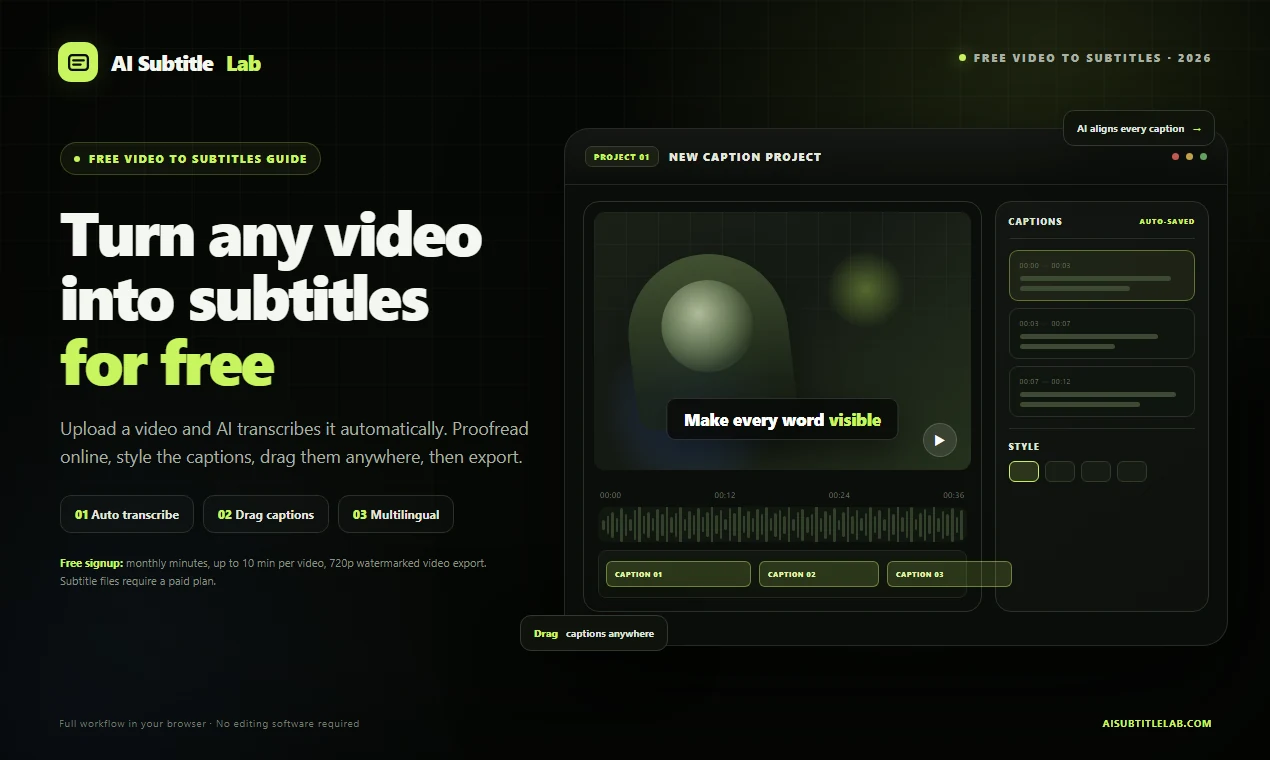
When adding subtitles to a video, the real time sink is rarely the "writing" itself — it's the transcription, syncing to the timeline, constant pausing, and proofreading. For a 10-minute video, doing subtitles manually can easily take one to two hours.
With AI automatic recognition, the workflow can now be shortened to: upload video → automatic transcription → proofread text → adjust style and position → export. Using AI SubtitleLab as an example, this article explains clearly what the free plan can do, exactly how to do it, and the pitfalls to watch out for.
Generating Subtitles for Free: Which Features Are Actually Free?
Bottom line first: the free plan can complete the entire workflow from recognition to export, but it comes with limits on quota, duration, export specifications, and watermarks.
As of October 2026, the free registered plan includes:
| Item | Free Plan |
|---|---|
| Monthly quota | 60 minutes |
| Single video duration | Up to 10 minutes |
| AI automatic transcription | Supported |
| Online subtitle editing | Supported |
| Subtitle styles and animations | Supported |
| Drag to reposition subtitles | Supported |
| Export video with subtitles | 720P, with watermark |
| SRT / VTT / TXT subtitle files | Not included, requires plan upgrade |
| Price | $0 |
If you just want to add subtitles to short videos, talking-head clips, or course segments, the free plan is already enough to complete the whole process from recognition to export. Consider a paid plan only when you need no watermark, higher resolution, subtitle files, or longer videos.
Plan benefits may change. Actual available quota and export specifications are subject to the Pricing page on the site.
Why Use AI to Generate Subtitles for Videos?
1. Automatic transcription saves the most time-consuming part
AI automatically recognizes speech and splits it into sentences, while generating the start and end time for each sentence — no need to type manually while playing the video.
2. Done in the browser, no software to install
Uploading and editing both happen in the browser. No editing software to install, and no need to learn complex timeline operations. For people who make videos occasionally, the barrier is much lower.
3. Editing is faster than re-transcribing
Recognition results can be edited directly online. Typos, punctuation, sentence breaks, numbers, and proper nouns can all be adjusted instantly, with an immediate preview on the video.
4. Subtitles aren't just "readable"
Built-in subtitle styles and dynamic effects let you change font, color, stroke, and background. You can also drag subtitles directly to reposition them and avoid faces and key visual elements.
5. Easy to extend to multiple languages
The same subtitle set can also be translated into other languages — great for videos, courses, and product demos aimed at overseas audiences.
Generate Subtitles from Video for Free: The Complete 7 Steps
Step 1: Register and open the editor
Go to AI SubtitleLab, register a free account, and open the editor. After logging in, generated subtitles are saved to your account so you can continue editing next time.
Step 2: Upload your video
Common video formats such as MP4, MOV, WebM, and MKV are supported. The video image is processed in your browser, and the system extracts the audio track and uploads it for speech recognition.
It's best to first confirm the video audio is normal, with no severe clipping or long silences. The cleaner the audio quality, the higher the recognition accuracy.
Step 3: Select the video language
Select the language actually used in the video. If the people speak Chinese, select Chinese; don't assume the subtitle language must be Chinese just because the interface is in Chinese.
Choosing wrong here will affect the sentence splitting and recognition results later.
Step 4: Wait for AI to generate subtitles automatically
The system recognizes speech, splits sentences, and aligns the text with the video timeline. Processing time depends on video length and the current queue.
Once generated, you'll see subtitles with timecodes one by one, and you can edit the text directly on the right side.
Step 5: Proofread 4 key areas
AI handles most content, but before publishing, focus on checking:
- Names of people, brands, and products
- Numbers, amounts, dates, and units
- Technical terms and abbreviations
- Whether sentence breaks are too long and affect readability
Subtitles aren't better the more complete they are. If too much text appears on screen at once, viewers won't have time to read it. For talking-head videos, 12–18 characters per line is usually comfortable, adjustable based on screen width.
Step 6: Apply a style and drag to reposition
Choose a subtitle style that fits the video's tone, then adjust font size, color, stroke, and animation.
If there are faces, products, or important information on screen, drag the subtitles to a safe area to avoid blocking them. Landscape videos usually place subtitles at the bottom; vertical short videos can place them slightly below the middle, but don't cover the speaker's mouth.
Step 7: Export the video
The free plan can export a 720P video with subtitles and an AI SubtitleLab watermark — suitable for first checking the result or publishing to platforms that don't require subtitle files.
If you need SRT, VTT, TXT subtitle files, or higher resolution and watermark-free video, choose the corresponding paid plan.
How to Make Subtitles More Accurate on the Free Plan
- Use the clearest audio source possible. Background music, echo, and ambient noise all affect recognition.
- Don't make a single video too long. The free plan allows up to 10 minutes per video; splitting into shorter segments also makes proofreading easier.
- Speak clearly before recording. Steady pacing and fewer swallowed sounds usually lead to much better recognition results.
- Be consistent with proper nouns. Use the same spelling for the same person's name or brand name throughout.
- Don't cram too much text into one subtitle. Prioritize being readable at a glance.
- Preview the full video before exporting. Check whether subtitles go off-screen, are blocked by people, or overlap with key visuals.
- Keep a text transcript. Subtitle text can be reused for blogs, social media posts, and video descriptions.
Which Videos Are Best Suited to the Free Plan?
- 1–10 minute talking-head and knowledge-sharing videos
- Course segments, product demos, and software tutorials
- Interviews, podcasts, and vlogs
- Vertical short videos like TikTok, Reels, and Shorts
- Content that needs a quick first cut and later refinement
For a short video of a few minutes, the free quota usually covers multiple attempts; for long courses or batch commercial projects, calculate the minutes in advance.
FAQ
Is the free plan really free?
Registering for the free plan is $0 and includes a monthly trial quota and watermark video export. Subtitle file export, watermark-free, and higher-resolution export are paid capabilities.
Can the free plan export SRT?
Under the current plan configuration, the free plan does not support SRT, VTT, or TXT subtitle file export, but it can export a 720P video with watermark. Check the Pricing page for the plan that includes the features you need.
Will the video be uploaded to a server?
The video image is processed in your browser, and the system only uploads the audio track for recognition. For details on data processing, see the site's privacy policy.
Can subtitles be placed anywhere?
Yes. The editor supports dragging subtitles directly to a safe area on screen, without blocking the subject or key information.
Does it support translation into other languages?
Yes. The site currently supports English, Simplified Chinese, Spanish, Arabic, Vietnamese, and Japanese; the available languages are subject to what the editor displays.
Summary
Generating subtitles from video for free doesn't require complex software or a long learning curve. For most short videos and talking-head content, the full workflow can be compressed into:
Upload video → AI automatic transcription → online proofreading → adjust style and position → export video.
Start with the free plan to hand the most time-consuming transcription and timeline work to AI, then focus your energy on content proofreading and visual presentation. When your video is ready, open AI SubtitleLab to start generating subtitles.