TikTok is built for silent viewing. Viewers constantly scroll through feeds on public transit, at the office, or in bed before going to sleep—often with the sound muted. Without subtitles, even the strongest hook, insight, or punchline can be skipped in the very first second.
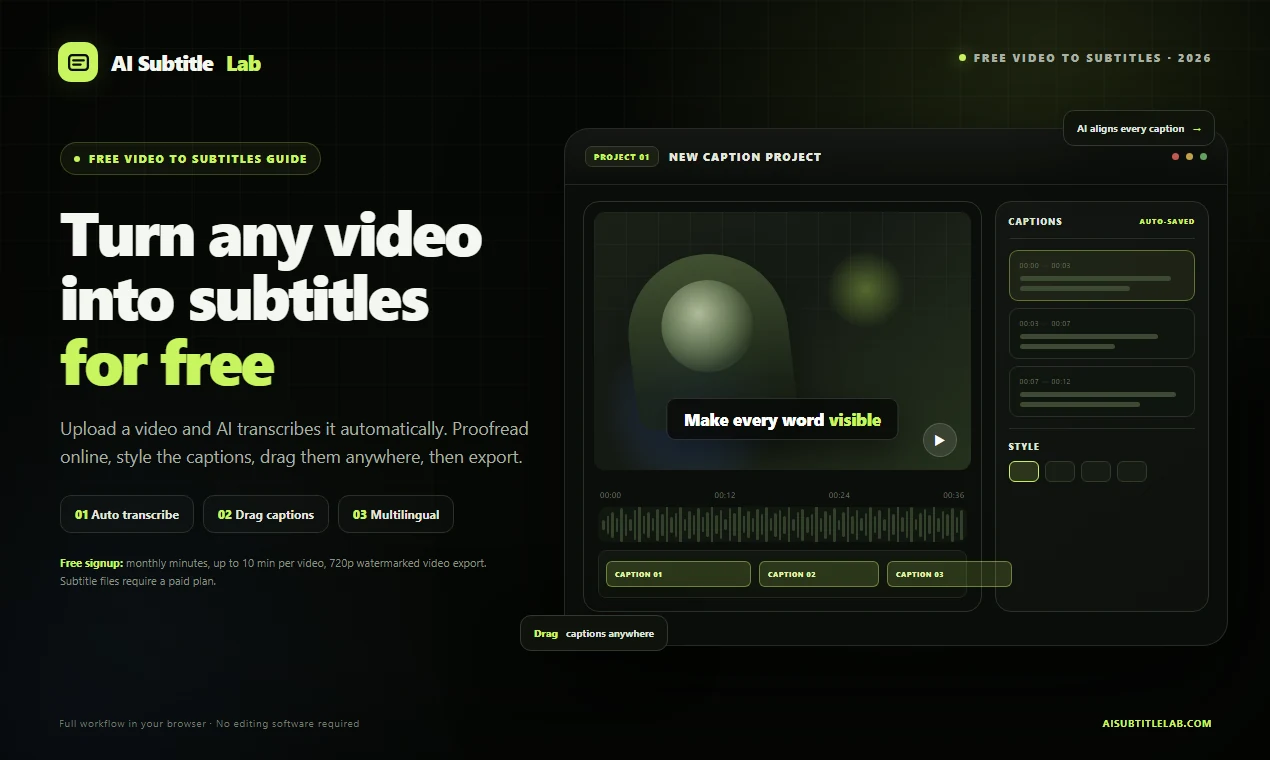
Adding captions to TikTok videos doesn't require typing out dialogue word-for-word in complex video editing software. With AI SubtitleLab, you can handle speech recognition, sentence splitting, vertical layout formatting, animated styling, and final video export in a single workflow.
The Short Answer: Complete TikTok Subtitle Workflow
Here is the most efficient process:
Upload video → AI auto-transcription → Proofread for vertical pacing → Apply animated presets → Position in safe zones → Export captioned video → Upload to TikTok.
Everything runs directly in your browser without requiring desktop editing software. First-time users can start with a free account to test caption accuracy and styling before deciding to upgrade.
Why TikTok Videos Need Subtitles
1. Many Users Watch on Mute
Captions immediately convey your hook, core message, and call to action. Even if viewers never turn on sound, they still grasp your video's message instantly.
2. Vertical Formats Rely on Visual Rhythm
TikTok uses a 9:16 vertical canvas. Subtitles that are too long, too small, or poorly positioned obstruct on-screen subjects and fail to give viewers enough time to read along.
3. Subtitles Act as Visual Design Elements
Keyword highlighting, text outlines, background boxes, and dynamic animations transform captions into engaging graphic assets rather than passive dialogue overlays.
4. Effortless Multilingual Repurposing
A single video can easily be translated and captioned in multiple languages—ideal for multi-market creator accounts, online courses, product demos, and paid ad creatives.
Pre-Production Checklist
Video Specs
Export your video in a 9:16 vertical aspect ratio at 1080×1920. Standard file formats including MP4, MOV, and WebM are fully supported. Keep in mind that excessively long videos increase transcription and review times; TikTok content generally performs best between a few dozen seconds and a few minutes.
Audio Quality
Clear vocals without overpowering background audio yield higher transcription accuracy. If your original audio has heavy echo, clipping, or prolonged silence, clean up the audio track prior to uploading.
Script Pacing
Captions are not verbatim transcripts. TikTok subtitles should be short, punchy, and readable at a glance. Displaying 2–6 English words (or 6–12 Chinese characters) per screen delivers the most reliable viewer retention.
How to Add Subtitles to TikTok Videos with AI SubtitleLab
Step 1: Open the Editor and Sign Up
Head over to the AI SubtitleLab Editor and create a free account. Once logged in, your subtitle projects automatically save to your profile so you can resume editing anytime without starting over.
Guests can test out transcription and editing features, but exporting subtitle files or rendered videos requires an account.
Step 2: Upload Your TikTok Video
Drag and drop your vertical video into the editor. Video rendering takes place directly in the browser while the system extracts the audio track for AI speech-to-text processing.
If you already have a video and simply need to adjust wording, you can review the generated transcription without manual typing.
Step 3: Select the Spoken Language
Select the actual language spoken in the video. Choose English for English dialogue, Chinese for Chinese speech, and so on. Selecting the wrong source language can degrade sentence boundary detection, punctuation, and overall accuracy.
Step 4: Let AI Generate the Timeline
The AI automatically transcribes speech and aligns every subtitle line precisely to your video timeline. Once processing finishes, you will see timestamped caption blocks ready for online editing.
Step 5: Proofread Captions for TikTok Pacing
Before finalizing your captions, check the following key details:
- Ensure the opening hook appears cleanly within the first 1–2 seconds
- Verify proper nouns, creator names, brand terms, numbers, and product titles
- Keep each on-screen block concise enough to read in a split second
- Ensure natural line breaks without leaving isolated single words dangling
- Confirm that caption entry and exit timings match speech cadence
Remove conversational filler like "um," "like," or "you know." TikTok captions should accelerate viewer comprehension, not document every verbal hesitation.
Step 6: Align Captions Within the TikTok Safe Zone
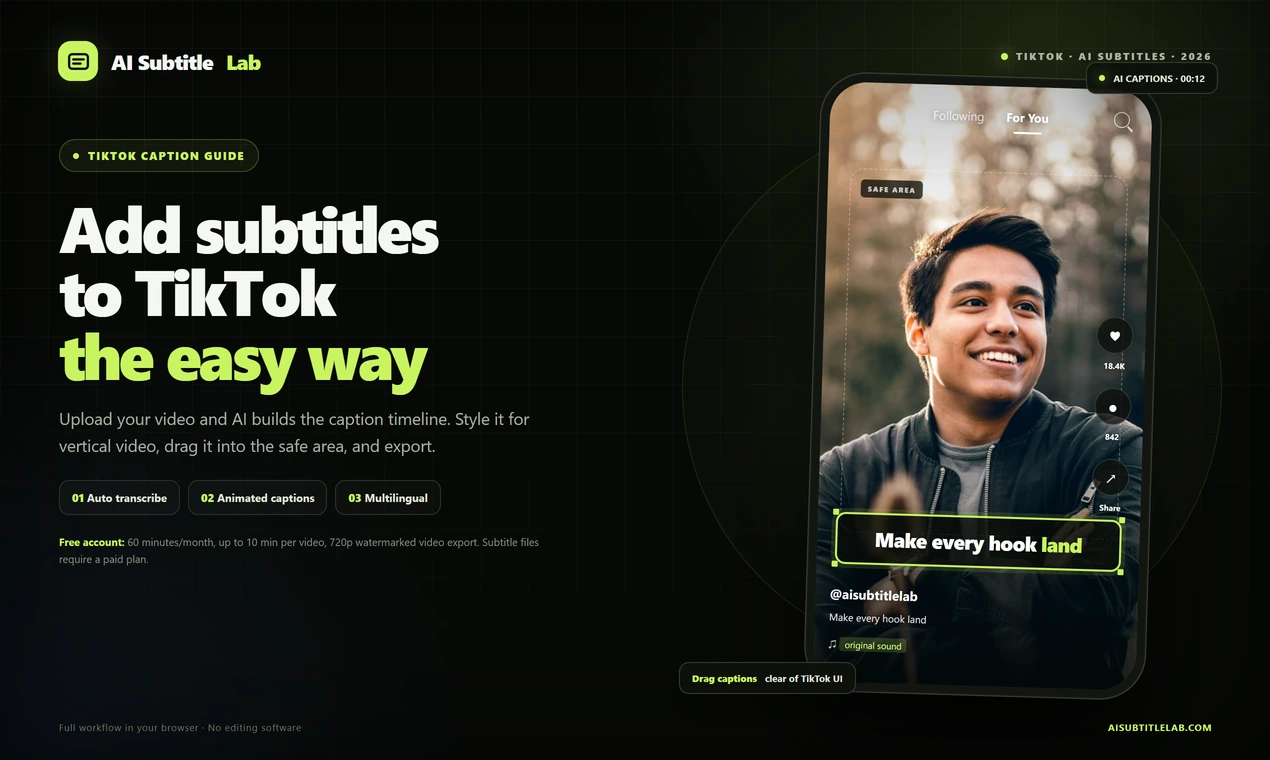
TikTok displays interactive action buttons on the right side and overlays username, caption text, and audio tags across the bottom. Subtitles placed flush against the bottom or right edge will inevitably be covered by UI elements.
Position captions in the lower-middle section of the frame while maintaining adequate padding:
| Zone | Recommendation |
|---|---|
| Top | Keep clear by 10%–15% to avoid status bars and headers |
| Right | Keep clear by ~15% to leave room for profile, like, and comment icons |
| Bottom | Keep clear by 18%–22% to prevent overlapping usernames and music tags |
| Subject | Avoid covering the speaker's eyes, mouth, featured products, or key actions |
Subtitles in AI SubtitleLab can be repositioned with freehand drag-and-drop. Apply your desired style first, then drag the text block into place—far faster than manually adjusting coordinate values.
Step 7: Choose a TikTok-Ready Subtitle Style
The editor provides diverse caption presets and dynamic animations. You can customize font choice, font size, fill colors, text strokes, background boxes, and keyword highlights.
Follow three core guidelines for short-form video styling:
- Maximize contrast. Pair dark video backgrounds with white or neon text; add dark stroke outlines or semi-transparent backplates over brighter footage.
- Highlight selectively. Emphasize only 1–2 core keywords per hook—avoid coloring entire sentences in bright accent tones.
- Keep motion subtle. Kinetic animation should guide visual attention, not distract from your core message.
If your brand uses proprietary typography, upload custom fonts to maintain consistent styling across thumbnails, intros, and caption text.
Step 8: Preview and Export
Play your video from the beginning. Double-check that captions stay within bounds, do not block the speaker's face, avoid overlapping the TikTok UI, and do not cut off before the final spoken word ends.
Free accounts can export 720P watermarked videos—ideal for previewing subtitle alignment or publishing everyday clips. If you need 1080P resolution, watermark-free output, or standalone SRT / VTT subtitle files, choose a matching subscription tier. Refer to the Pricing Page for full feature details.
Step 9: Upload to TikTok
Once exported, upload your captioned video to TikTok. Run a final pre-publish check:
- Does the opening frame clearly communicate the video's core topic?
- Is caption text sharp and legible on mobile screens?
- Have relevant target keywords been added to the caption and description?
- Are publishing times and audience settings properly configured?
AI SubtitleLab handles caption generation and video rendering, but does not publish directly to social platforms. Tailor your video descriptions, hashtags, and posting schedules according to your channel strategy.
TikTok Subtitle Formatting Checklist
Review this quick checklist before hitting publish:
- Limit each screen to a single concise idea
- Restrict line width to under 80% of total screen width
- Highlight key phrases only once per sentence
- Keep captions clear of the speaker's mouth and eyes
- Maintain margins clear of right-side buttons and bottom UI
- Ensure captions appear synchronously or slightly ahead of speech
- Keep the final caption visible for at least 0.6–1 second
- Export dedicated platform cuts rather than reusing horizontal letterboxed captions
Native TikTok Captions vs. AI SubtitleLab: Key Differences
TikTok's native auto-caption tool works well for basic, off-the-cuff talking-head clips, but offers limited typographic control, styling presets, and brand consistency.
AI SubtitleLab is tailored for creators requiring granular design control: edit wording and timestamps line-by-line, drag positions freely, apply kinetic presets, upload custom brand fonts, and reuse identical subtitles across multiple aspect ratios and localized languages.
For spontaneous casual posts, built-in captions may be enough. For dedicated creator channels, paid ads, course lessons, or consistent branding, a standalone captioning tool offers far greater stability and polish.
Frequently Asked Questions
Can I add subtitles to TikTok videos on the free plan?
Yes. Signing up for a free account gives you access to AI transcription, caption editing, and watermarked video export. The free tier includes 60 minutes per month with a maximum video length of 10 minutes per file; exporting raw subtitle files requires a paid upgrade.
Can I place subtitles in the middle of a TikTok screen?
Yes. Subtitle positioning supports unrestricted drag-and-drop. We recommend placing captions just below the speaker's face, safely between TikTok's right-side interactive icons and bottom metadata.
Can I automatically translate subtitles into other languages?
Yes. AI SubtitleLab supports multilingual subtitle generation and translation, letting you adapt one video for international markets. We recommend a quick human review after translation to polish tone, idioms, and local phrasing.
What video formats are supported?
AI SubtitleLab supports MP4, MOV, WebM, and MKV formats. For vertical TikTok content, we recommend preparing 1080×1920 video files.
Do exported videos contain watermarks?
Free tier exports include a watermark at up to 720P resolution. Pro plans and above allow watermark-free exports at higher resolutions. Check our Pricing page for full plan limits and features.
Can AI SubtitleLab post directly to TikTok?
AI SubtitleLab exports captioned video files directly to your device; it does not automatically publish to TikTok accounts. Simply download your finished MP4 and upload it via the TikTok app or web portal.
Summary
When captioning TikTok videos, the biggest bottleneck isn't typing—it's manual transcribing, adjusting timeline sync, and fine-tuning placement.
Offloading these repetitive tasks to AI lets you focus on what drives views: crafting compelling hooks, positioning text in UI safe zones, and building a recognizable visual brand.
Ready to get started? Open AI SubtitleLab, upload your vertical clip, and generate your first captioned TikTok video today.